
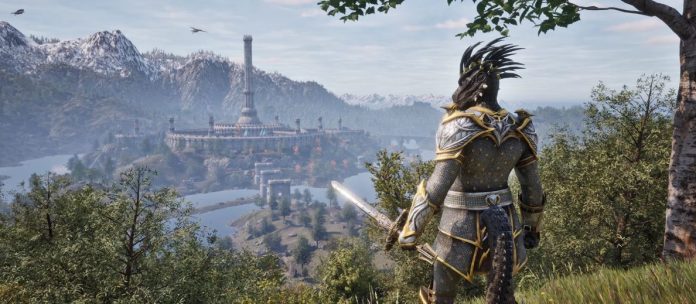
Focus on squeezing more visual quality and smoother frame rates from classic games—it’s a common goal for any operator or gamer with an eye for value. Oblivion Remastered already offers a big leap forward for the Elder Scrolls IV, updating assets and gameplay for modern PCs. Still, sometimes your hardware or budget isn’t enough to run those upgrades at high frame rates, especially on mid-range or older cards.
There’s no shortcut to flawless performance, but by installing the DLSS-to-FSR 3 mod, you can make smart use of two major graphics tools: NVIDIA’s DLSS upscaling and AMD’s FSR 3 frame generation. For example, blending them lets you play at higher quality with less hardware strain—an approach that balances cost with smooth gameplay.
Step 1: Download the Required Files
Start by searching for a reliable download source. The “universal” DLSS-to-FSR 3 package is the main mod you need. Trusted communities like Nexus Mods often host updated, well-reviewed versions. Don’t cut corners with unofficial sites—security and stability are worth the extra minute of research.
After downloading, look for a folder named dll_version in the package. That’s where the vital files are stored. This attention to detail up front lowers your risk of failed installs or corrupted game files later on.
Tip: Double-check forum comments for the mod version that others are using successfully. A quick scan here can save you frustration, especially if you’re using a less common graphics card.
Step 2: Copy the DLL Files to the Right Folder
Precision matters for this step. Inside the dll_version folder, you’ll find two critical files: version.dll and dlssg_to_fsr3_amd_is_better.dll. Highlight and copy both.
Now, open your Oblivion Remastered installation directory. Steam users usually find it under:
steamapps\common\Oblivion Remastered\OblivionRemastered\Binaries\Win64
Paste the two files in this exact spot. This location triggers the mod when the game launches, letting the new upscaler and frame generation routines take over.
Another way to work safer: Back up your original files first. If something goes wrong, restoring is as simple as pasting your backup back into the same folder. Think ahead—protecting your install now can prevent downtime later.
Step 3: Choose the Correct Mode for Your GPU
This step often trips up new users, but the payoff for accuracy is significant. DLSS and FSR 3 optimize differently depending on your graphics hardware, so selecting the right profile is vital.
When prompted (often during installation or first launch), pick:
- Option 2 for NVIDIA cards
- Option 1 for AMD or Intel cards
Picking the wrong option leads to technical issues or prevents the mod from running at all. If you’re unsure of your GPU brand, check your Device Manager or system display settings first. Key takeaway: a two-second check here beats hours of troubleshooting later.
Step 4: Enable Frame Generation In-Game
Now for the strategic part—configuring new features inside Oblivion Remastered itself. Launch the game as usual.
Next, press the Insert key. On laptops, you may need to hold Fn + Insert. This brings up the mod menu, sometimes called the “upscaler menu.”
Inside the menu:
- Switch the upscaler from DLSS to FSR3. The version number (e.g., FSR 3.1.3) should display here.
- Apply the change before moving on.
- Find the option to activate frame generation (sometimes labeled “optfg” or “Frame Generation”). Switch it on.
- Click “Save ini” (to store your settings) and exit the menu.
Finally, restart Oblivion Remastered once. This ensures all new features initialize correctly.
For example, some users forget to restart and then miss out on performance boosts until they relaunch the game.
Step 5 (Optional): Maintaining Achievement Unlocks
There’s no shortcut around the fact that mods like these can mess with Steam achievement tracking. If keeping your in-game achievements is important, use the fix included in some mod packs—a small DLL file.
Not everyone needs this step. However, if you see achievement popups stop appearing, drop the standalone DLL file for “achievement enable” into your game’s main directory. It’s a one-minute fix for something that can otherwise hurt long-term motivation.
Tip: Some users have found that running a community achievement manager or asking in forums can help if problems persist after this step.
Step 6: Additional Considerations and Real-World Tips
Input Lag and Low Frame Rates: Current frame generation tech has limits. For example, when your real frame rate falls below 50-60 FPS, you might notice less smoothness or increased input lag. This is a software and driver limitation, not a problem with the install.
Smart operators test several settings and track the base frame rate before and after enabling FSR 3. If extra lag becomes a dealbreaker, drop down to the next lower graphics preset and retest.
No Extra Mods Needed: The strength of this approach lies in its simplicity—just two DLL files, the right in-game mode, and optional achievement support. Avoid the temptation to overload your game with extra mods until you’ve confirmed a stable, smooth result from this pairing. Focus on stability before chasing flashy effects.
Key takeaway: Start simple, get the basics working, then layer on additional enhancements slowly. Measure results at each step.
Step 7: Summary Table – Steps at a Glance
| Step | Action |
|---|---|
| Download mod | Universal DLSS-to-FSR 3 package (Nexus Mods, etc.) |
| Copy .dll files | Copy version.dll, dlssg_to_fsr3_amd_is_better.dll to game directory |
| Choose mode | Select NVIDIA (2) or AMD/Intel (1) as your hardware requires |
| In-game setup | Press Insert → pick FSR3 → enable Frame Generation → Save/Restart game |
| Achievement fix (optional) | Use bundled DLL if you need to keep achievement progress working |
Key takeaway: There’s no magic; every step builds on the last. Careful tracking helps you catch issues early.
Step 8: Example and Troubleshooting Common Issues
For example, Sarah, a small business owner and weekend gamer, found her frame rates doubled after following these steps on a modest RTX 2060 laptop. She did encounter some mouse lag at low FPS, but a quick graphics preset adjustment fixed it. Her main regret? Not backing up her save files first. A little discipline prevented extra headaches.
Tip: If the game fails to launch, review which mode you picked and check for file typos. Community guides and forums can offer practical, up-to-date fixes.
If busy work or other projects pull your attention away, consider documenting your changes in a simple text file. That way, future updates or troubleshooting sessions take minutes, not hours.
For more optimization strategies on PC gaming and business operations, see this resource for practical tips that can give you a slight edge.
Step 9: Conclusion and Next Steps
Think ahead—each improvement you make sets a foundation for the next level of growth, whether in gaming or business. Installing DLSS-to-FSR 3 in Oblivion Remastered doesn’t guarantee miracles, but provides a smart, measured approach to better visuals and steadier performance.
Focus on each step, keep your files organized, and treat technical issues as solvable problems, not deal-breakers. Test small changes and measure impact. Over time, you’ll find that small, deliberate improvements add up—both to a better gaming experience and better habits in any project you tackle.
Key takeaway: Progress is rarely instant. But consistency, good tools, and a willingness to learn from each attempt put you ahead of the curve. Enjoy the smoother, more beautiful world of Oblivion Remastered, and keep experimenting—steady progress creates lasting success.
Also Read: